On Android, install Smokie, sign in, and tap Light Up to look for a video chat. Here’s what to expect before, during, and after your first call.
1. Install and sign in
Open Smokie on Google Play on your Android phone and install the app. Smokie is for adults 18+. This website introduces the app; video chats take place in the Android app.
Open Smokie and choose Continue with Google. Follow the profile setup prompts. Use profile details you’re comfortable sharing with people you haven’t met. You can later add a bio of up to 100 characters and choose three hobbies from the Profile tab. Try these 420-friendly bio ideas if you’re staring at a blank box.
Allow the camera and microphone
These permissions let other people see and hear you in calls. When the permissions screen appears, choose Allow All and respond to the Android prompts. You can also choose whether to allow notifications for messages.
Find a comfortable spot and check what your camera shows behind you. Headphones can help keep your side of the conversation private.
2. Tap Light Up
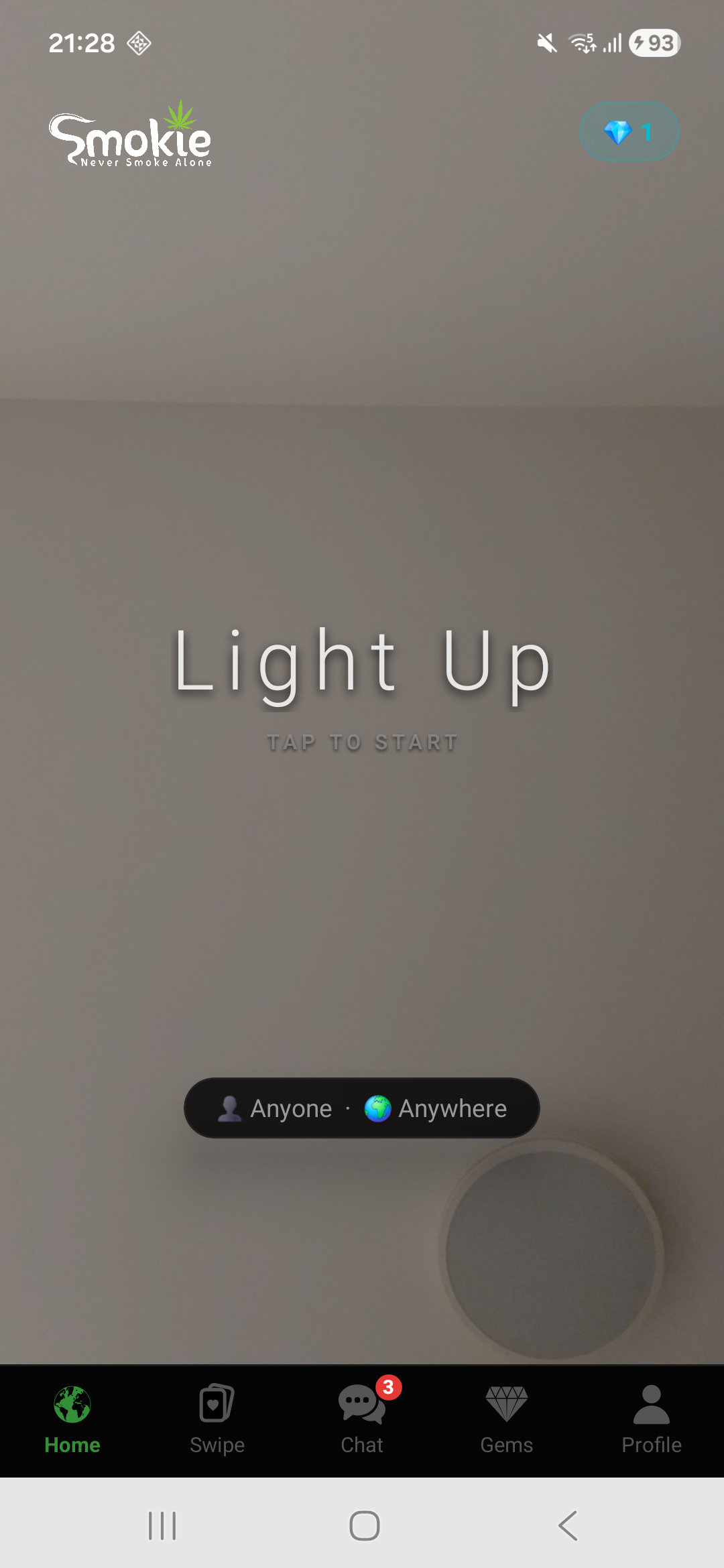
From the Home tab, tap Light Up to start looking for a one-to-one match. Availability depends on who is online and your selected preferences.
Smokie also includes AI characters. If a human match isn’t available, you may be connected to an AI conversation. An AI character is not another app user.
While you’re waiting
Press and hold the waiting character to animate a puff, then release to exhale. Tap the High Thoughts card for another question or one-liner. The animation bar doesn’t measure your wait time. Meet the puppy and the other waiting characters.
Understand the call controls
- Next
- Leave the current conversation and look for another match.
- End
- Finish the call and return to the app.
- Microphone
- Mute or unmute your side of the call.
- Switch camera
- Change between your phone’s cameras.
- Report
- Report unwanted behavior. You can end a call whenever you need to.
A simple hello is enough to begin. If you’d like a few ideas, try these conversation starters.
3. Add friends while you’re talking
If you’d like to talk again, send a friend request during the call. The other person can accept or decline. Once you’re friends, use the Chat tab to keep in touch through messages.
You can also browse profiles in Swipe. Like someone you’d like to meet; a mutual like gives you another way to connect.
Find your way around the five tabs
- Home
- Start a video search with Light Up and choose your matching preferences.
- Swipe
- Browse profiles and their interests. Swipe right to like or left to pass. When you both like each other, you can chat.
- Chat
- Open your conversations and keep in touch between video calls.
- Gems
- View your balance and available gem packs. The app shows purchase prices when they’re available from the store.
- Profile
- Edit your bio and hobbies, find My Friends, or open support and account settings.
Your friend list is under Profile → My Friends. Removing a friend also deletes your chat with them, so check the confirmation before doing that.
Optional filters and gems
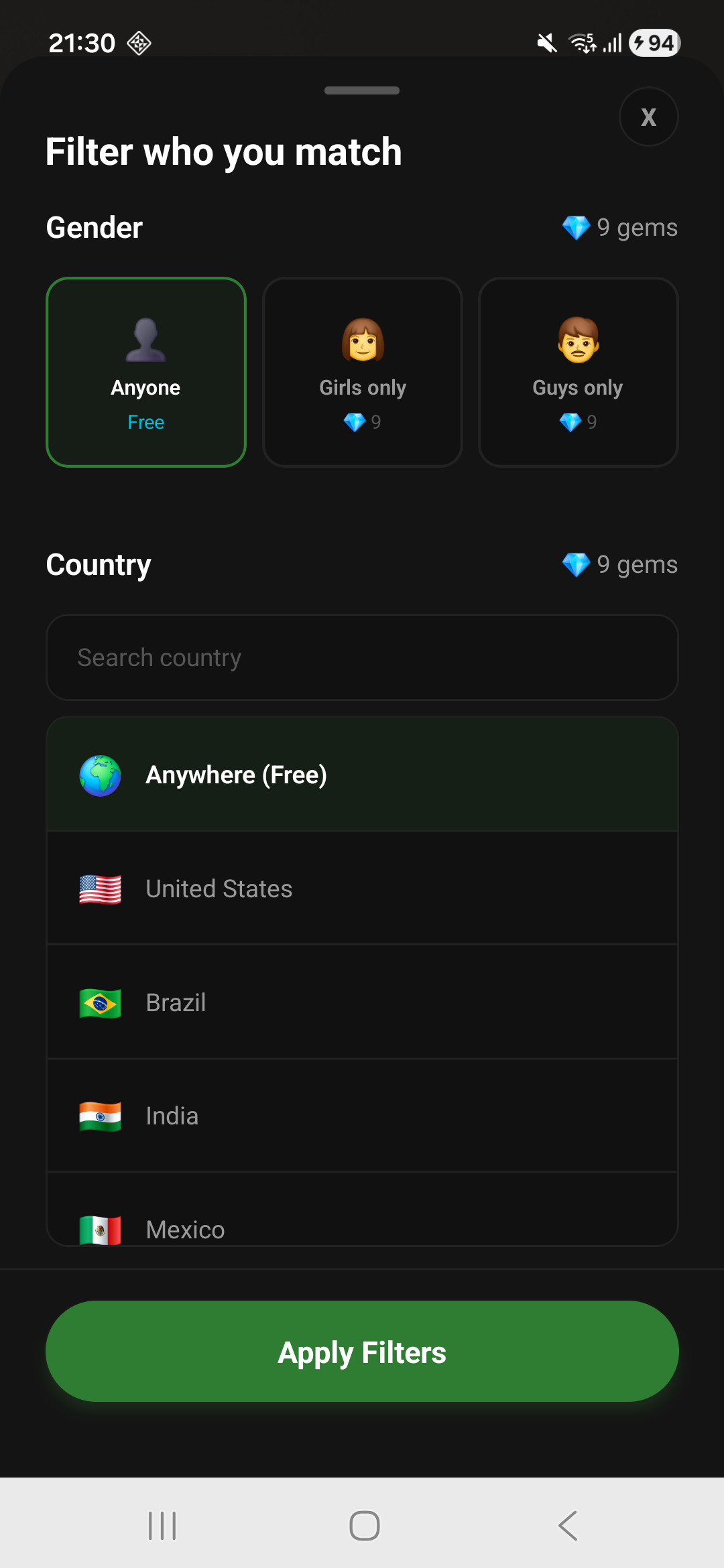
The preference control near the bottom of the Home screen opens your matching filters. Country and gender filters use gems; check the displayed cost before applying them. You can start matching without paid filters.
Country selection is a preference, not a search for people nearby. It doesn’t use GPS to locate smoking buddies around you. Filters can also narrow the number of people available to match.
If something isn’t working
The camera or microphone is blocked
Open your Android settings, find Smokie under Apps, and review its camera and microphone permissions. The exact settings labels vary by phone. Return to Smokie after allowing access.
A call won’t connect
Check your internet connection and app permissions. Match availability can vary, particularly with filters. If the problem continues, contact support with your phone model and what happened.
Someone makes you uncomfortable
End the conversation and use the report or block tools. Read the community rules for what’s allowed. Don’t share passwords, payment details, or your home address with a match.
You need account or purchase help
Visit Smokie Support. To remove your account, follow the account deletion instructions.